
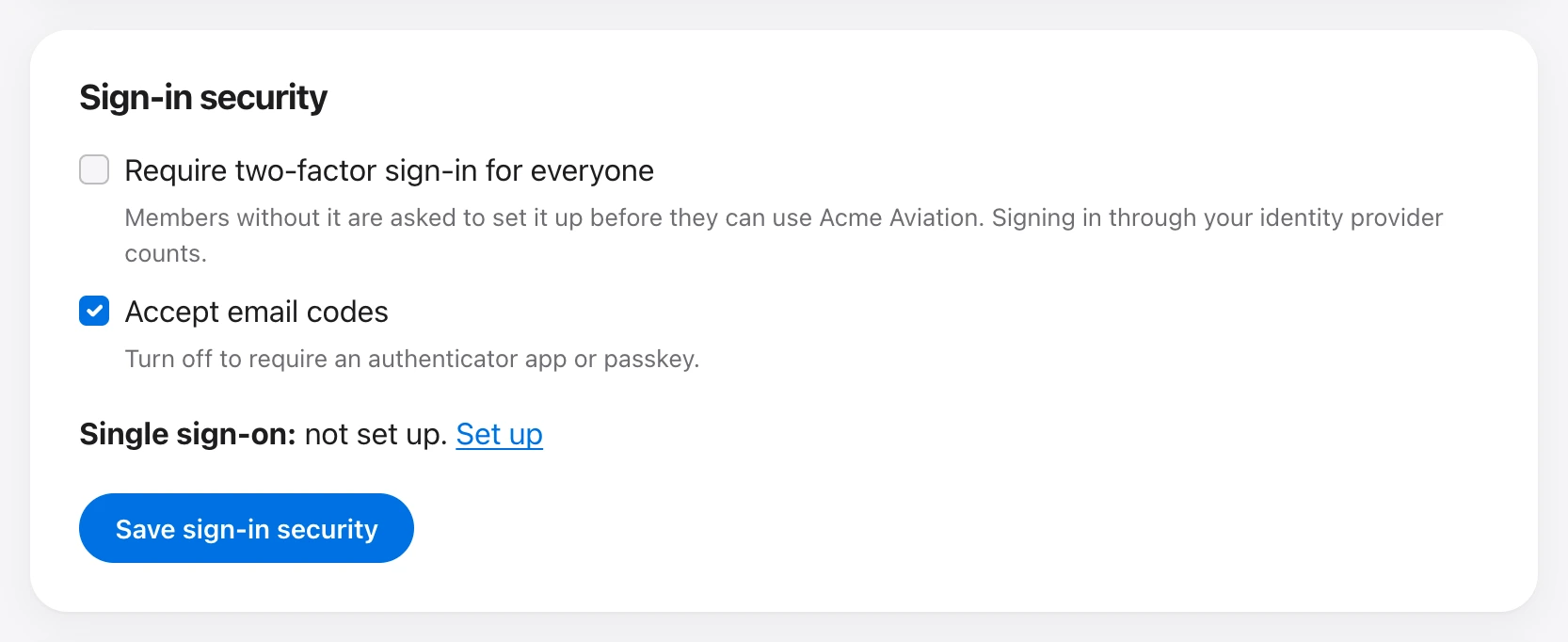
Single sign-on (SSO) lets people sign in with your identity provider, such as Microsoft Entra ID, Google Workspace, or Okta, on the web and in every Aeroframe app. Only owners can change it. Open Organization → Sign-in security and choose Set up.
- Verify your email domains. Add each domain your people’s emails use, then add the TXT record shown to that domain’s DNS and choose Check DNS. Shared providers such as gmail.com cannot be used.
- Connect your identity provider with OpenID Connect or SAML 2.0, and choose the role for people who join through SSO. Add people the first time they sign in is optional; new members count toward your seats.
- Test and require it. Open /sso in a private window and sign in with an account on your domain. When it works, you can turn on Require single sign-on for your verified domains.
When SSO is required, members with those emails can no longer use a password. Owners still can, with two-factor, in case the identity provider is down.
To sign in, choose Sign in with single sign-on (SSO) and enter your work email. Someone whose account also belongs to another organization enters their password once to link it.