
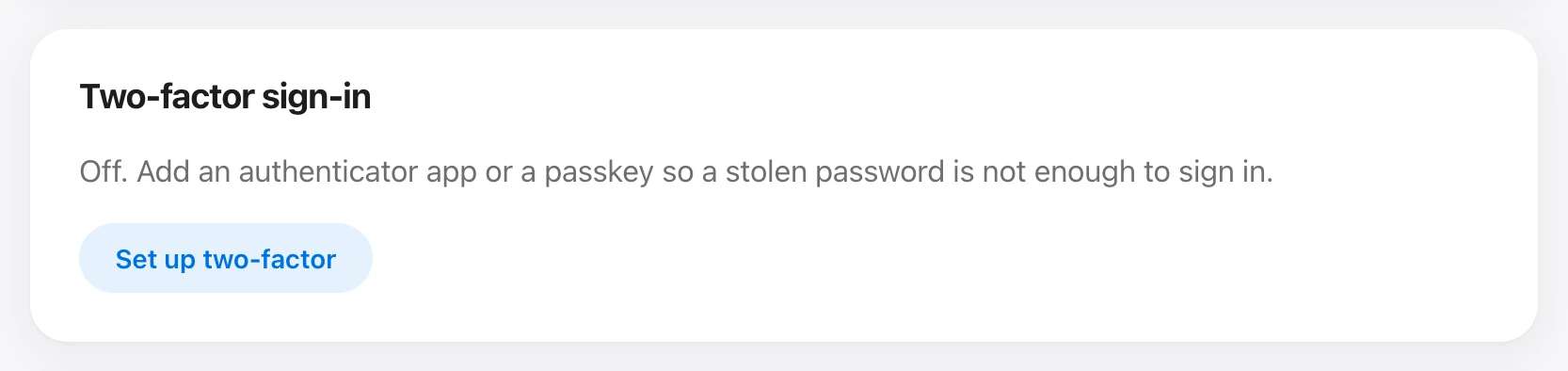
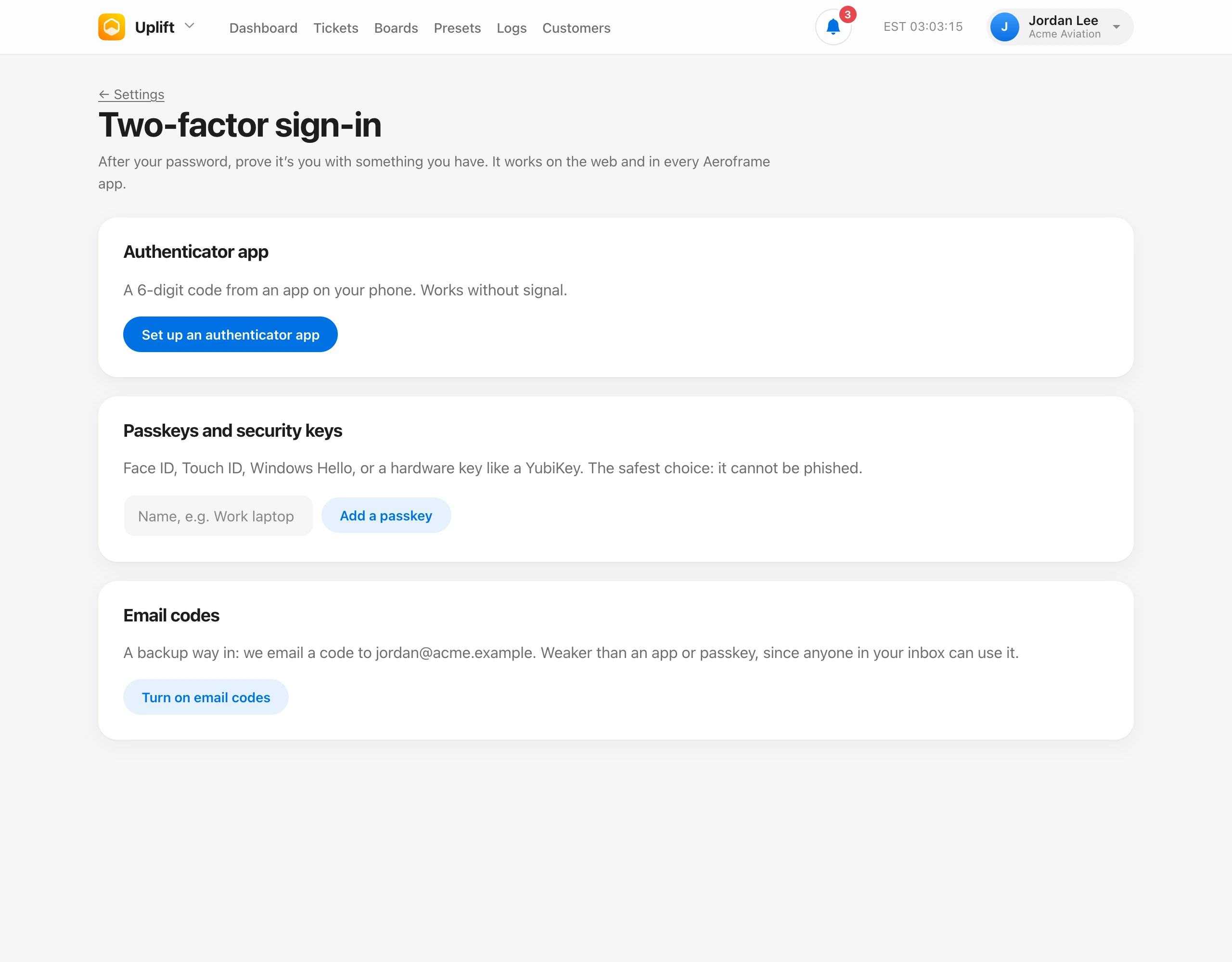
Two-factor sign-in asks for something you have after your password, on the web and in every Aeroframe app. Open Settings and choose Set up two-factor.
- Authenticator app — a 6-digit code from Apple Passwords, Google Authenticator, 1Password, or another app. Works without signal.
- Passkeys and security keys — Face ID, Touch ID, Windows Hello, or a hardware key. The safest choice, because it cannot be phished.
- Email codes — a backup way in. Weaker than an app or passkey, since anyone in your inbox can use it.
When you set up your first method you get recovery codes, shown only once. Each one signs you in once if you lose your phone or key. Keep them somewhere safe, like your password manager. Make new codes cancels the old ones.
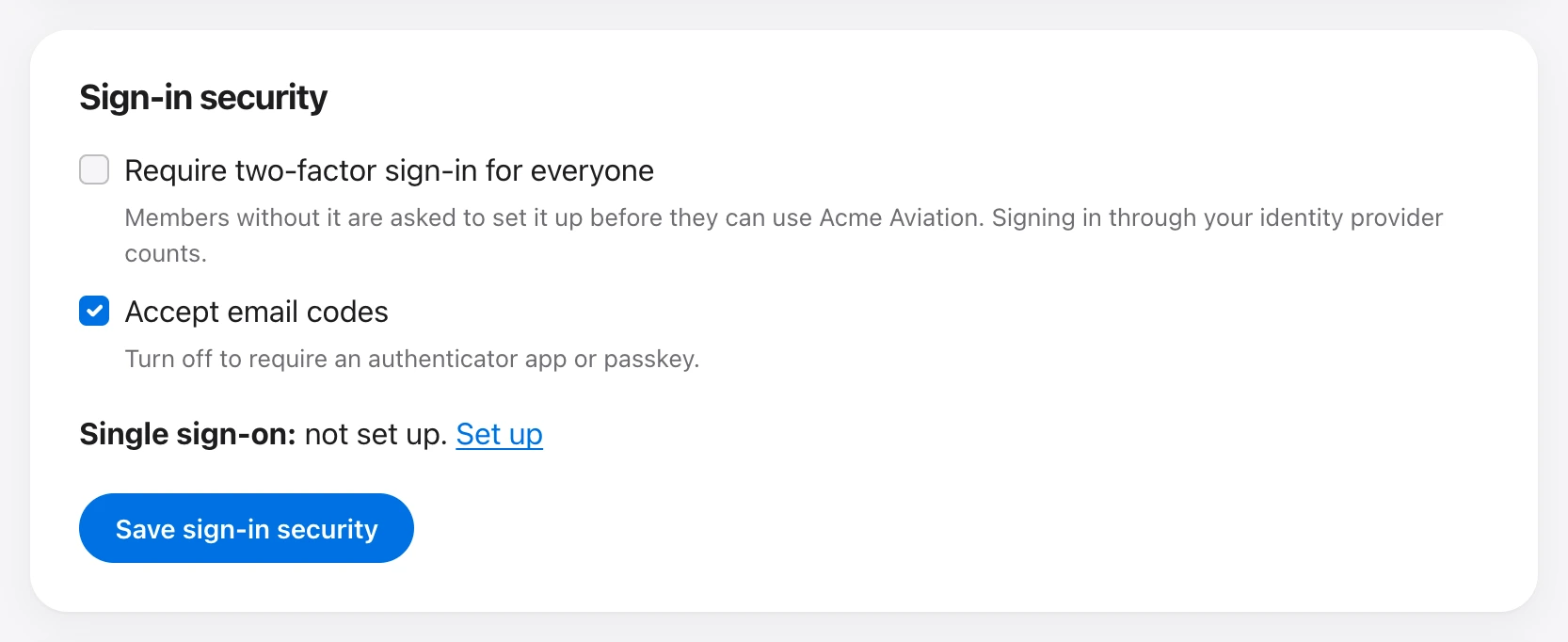
Under Organization → Sign-in security, an owner can Require two-factor sign-in for everyone, and choose whether email codes are accepted. Members without it are asked to set it up before they can use the organization. Signing in through your identity provider counts.
Lost everything? Ask someone who manages sign-in security to choose Reset next to your name under Members.